Getting Started with GitHub Copilot
GitHub Copilot, powered by OpenAI, transforms the way developers write code by offering smart, context-aware suggestions. Its effectiveness depends not just on its powerful training but also on how well you guide it! 💡
Quick Tips for Better Prompts
Start Broad, Then Add Details
Begin with a general description, then list specific needs.
# Good: Start broad
# Create a user authentication system
# - JWT tokens for sessions
# - Password hashing with bcrypt
# - Email validation
Use Examples
Show Copilot sample inputs and outputs to make your intent clearer.
// Calculate tax for different regions
// Example: calculateTax(100, "US") -> 108.25 (8.25% tax)
// Example: calculateTax(100, "UK") -> 120 (20% VAT)
Break Down Complex Tasks
Tackle large problems by asking for smaller parts one at a time.
# ❌ Avoid: "Build a complete e-commerce system"
# ✅ Better: "Create a Product class with price validation"
Be Specific
Avoid vague terms—clearly refer to functions, code blocks, or libraries.
// ❌ Vague: "Fix this function"
// ✅ Specific: "Fix the validateEmail function to handle edge cases like emails with plus signs"
Essential Setup Tips
1. Open Relevant Files
Keep related files open in your IDE. Copilot draws context from all open files to provide more accurate suggestions.
-23b7f6d334ac9630a5278aaf4f00fedf.gif)
Use #editor in the chat interface to provide GitHub Copilot with additional context on your currently opened files in VS Code.
2. Add Top-Level Comments
Begin files with a high-level comment explaining the purpose and goals—Copilot uses this to generate relevant boilerplate and structure.
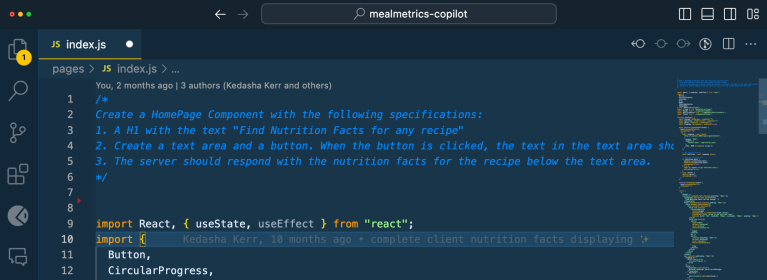
"""
User Management System
Handles user registration, authentication, and profile management
Uses JWT for session management and bcrypt for password hashing
"""

class UserManager:
    # Copilot will now generate contextually relevant methods
3. Set Imports & References
Manually include the exact import statements for libraries you're using.
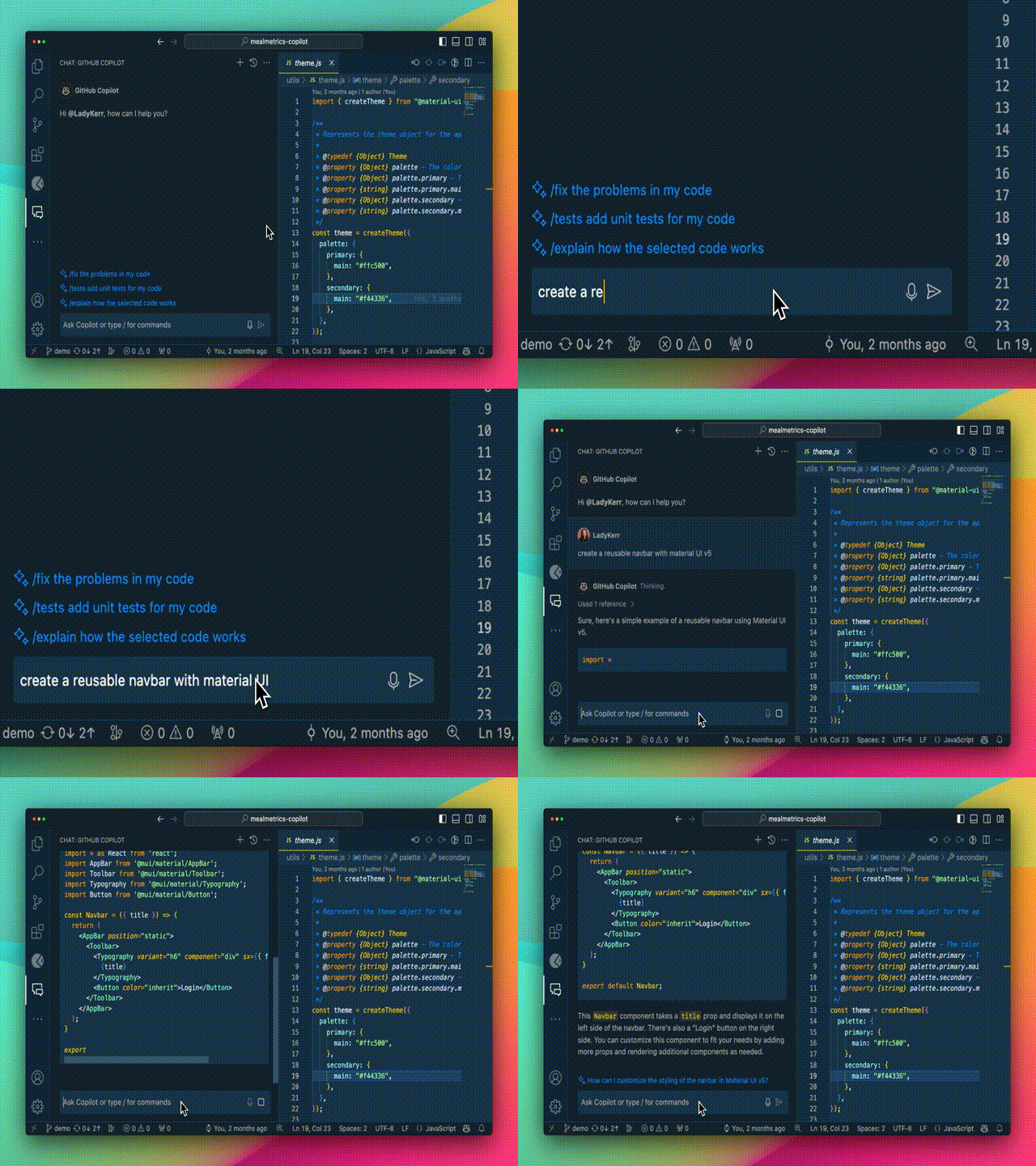
// ❌ Without imports - Copilot suggests console.log
import { Logger } from 'log4js';

// ✅ With imports - Copilot suggests Logger methods
const logger = Logger.getLogger();
Writing Copilot-Friendly Code
Use Meaningful Names
Just as unclear function names confuse your teammates, they confuse Copilot too!
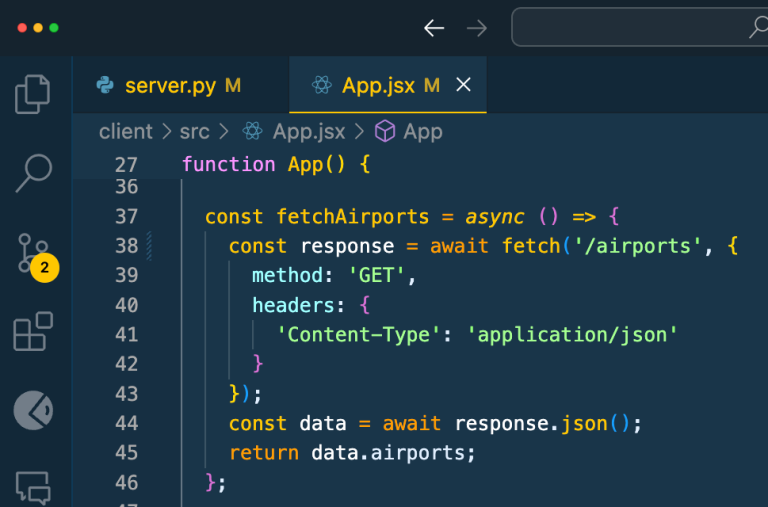
# ❌ Unclear
def fetchData():
    pass

# ✅ Clear
def fetch_user_profile_by_email():
    pass
Write Scoped Function Comments
Add concise comments above functions to describe their behavior.
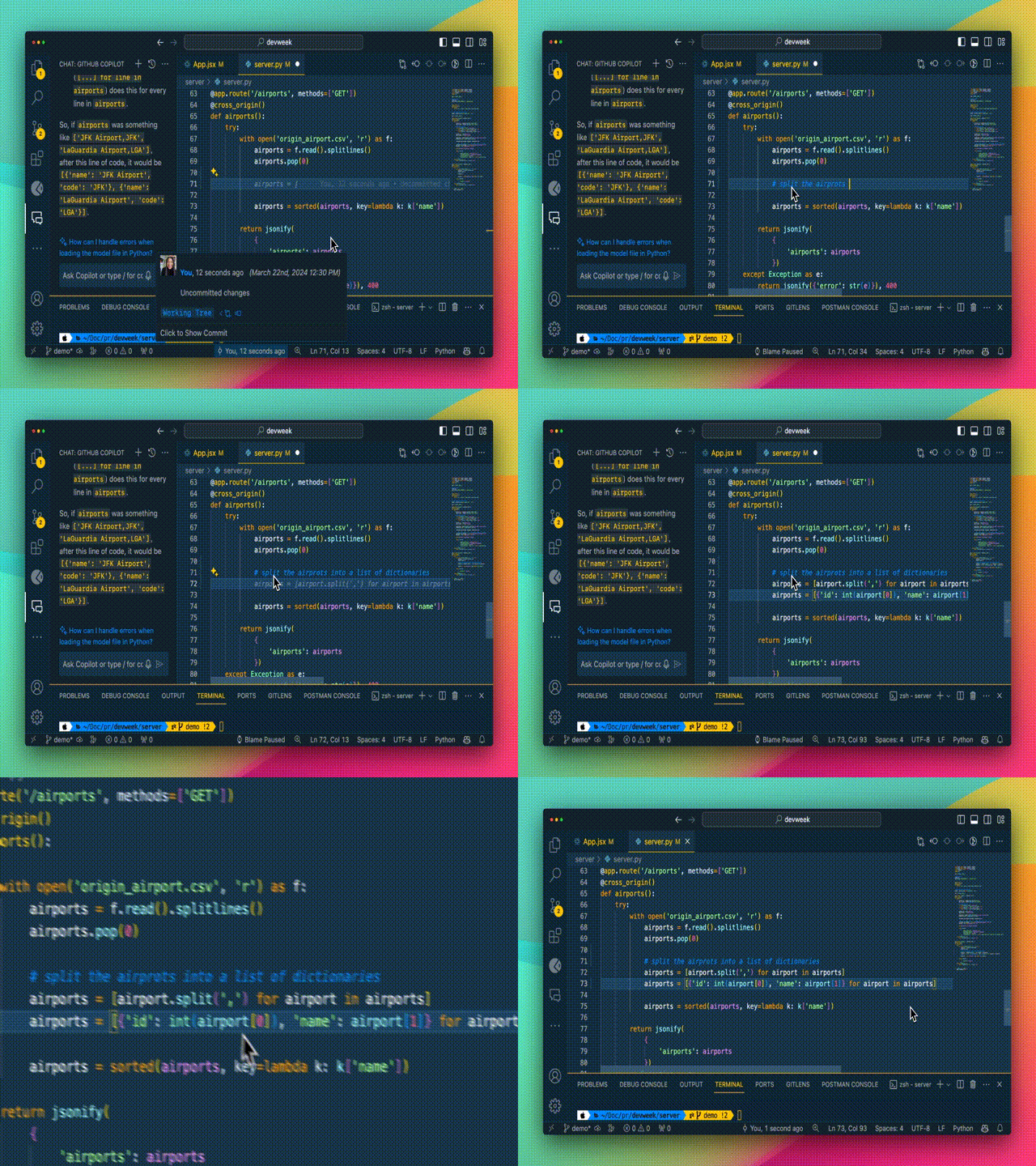
/**
 * Validates email format and checks domain availability
 * Returns validation status and error message if invalid
 */
function validateEmailAddress(email) {
    // Copilot generates contextually accurate validation logic
}
Provide Sample Code
Include small code examples or unit tests so Copilot learns your style.
def calculate_discount(price, discount_percent):
    """Calculate discounted price."""
    return price * (1 - discount_percent / 100)

# Example usage:
# calculate_discount(100, 10) -> 90.0
# calculate_discount(50, 25) -> 37.5
Getting Better Results
Iterate on Solutions
When asking Copilot Chat for help, you can iterate and improve the solution. Copilot remembers both the generated code and your conversation context.
Example: Creating a Fibonacci function
- Start: "Create a function to calculate Fibonacci numbers"
- Refine: "Make it non-recursive for better performance"
- Polish: "Add input validation and improve variable names"
Use Inline Chat (Ctrl/Cmd + I)
Use the inline chat feature for quick questions or fixes without leaving the code editor.
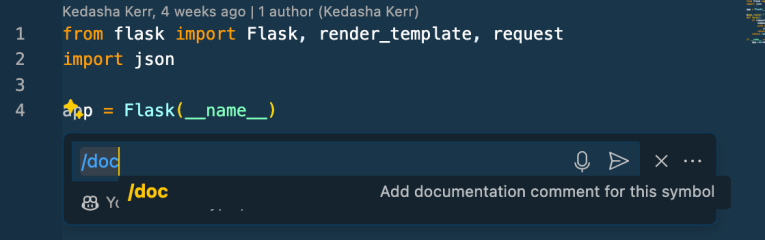
- Ctrl/Cmd + I: Opens inline chat
- Ask quick questions like "Add error handling to this function"
- Request fixes: "Make this function more efficient"
Key Takeaways
- 🎯 Clear prompts = Better code suggestions
- 📁 Context matters - Keep relevant files open
- 💬 Comments help - Explain your intent clearly
- 🔄 Iterate freely - Refine and improve suggestions
- 🛠️ Setup properly - Imports, references, and structure matter
Ready to dive deeper? Check out our Best Practices and Agent Mode guides! 🚀